
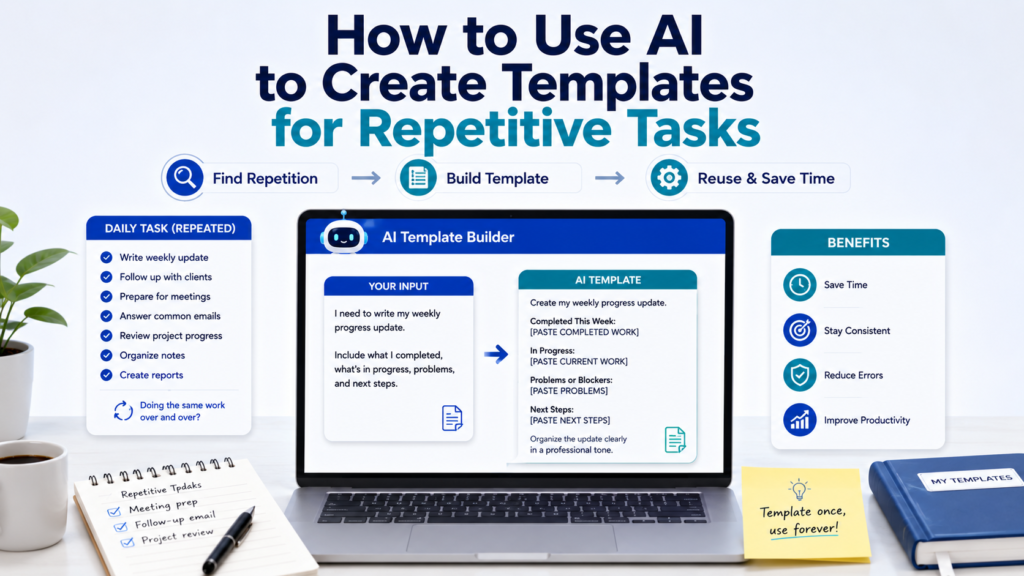
If you perform the same type of task again and again, you probably repeat more work than necessary.
You may write a similar weekly update every Friday, prepare meetings using the same steps, organize notes in the same format, answer similar emails, review projects with the same questions, or create the same checklist whenever a familiar task appears.
AI can help you turn those repeated steps into reusable templates.
Learning how to use AI to create templates for repetitive tasks can save time, make routine work more consistent, and reduce the mental effort of deciding how to start every time.
The goal is not to automate everything. It is to recognize work that follows a predictable pattern, separate the parts that stay the same from the parts that change, and build a simple template you can reuse.
Why Use AI to Create Templates for Repetitive Tasks?
Templates are useful when the structure stays similar even though the details change.
| Repetitive Task | Reusable Template |
|---|---|
| Weekly update | Weekly status template |
| Follow-up email | Follow-up email framework |
| Meeting preparation | Meeting prep template |
| Project review | Progress review template |
| Research | Research template |
| Notes processing | Notes-to-action template |
| Content creation | Draft and review template |
| Routine process | Step-by-step checklist |
Instead of beginning with a blank page, you begin with a structure that already asks for the information you need.
This is also how task-management systems use templates. Asana, for example, describes task templates as a way to standardize recurring work and avoid rebuilding the same task structure from scratch.
Step 1: Find Tasks You Repeat
Do not start by asking AI to create random templates.
First identify tasks that actually repeat.
Think about the last few weeks and ask:
- What have I written more than once?
- What process have I repeated?
- What information do I repeatedly organize?
- What task always requires similar steps?
- What do I frequently copy from an older document?
- What do I repeatedly explain to AI?
You can also ask AI:
Sample Prompt:
I regularly do the tasks listed below. Identify which ones are good candidates for reusable templates. Explain what part of each task appears repeatable. Do not suggest automation yet.
[PASTE YOUR TASKS]
Good candidates usually have a recognizable structure.
For example:
Every Friday I review what I completed, what remains unfinished, problems that came up, and what I need to do next week.
That is an excellent template candidate.
Step 2: Choose a Task That Is Predictable Enough
Not every repeated task should become a template.
A template works best when the process has repeatable structure but variable content.
Consider these two situations:
Task A: Write a weekly progress update.
The information changes every week, but the categories remain similar.
Task B: Decide whether to move to another city.
You might make this decision only once, and the factors may be highly specific.
Task A is a much stronger template candidate.
Ask:
Review this repetitive task and tell me which parts follow a predictable pattern and which parts require judgment each time.
This prevents you from forcing highly variable work into an overly rigid format.
Step 3: Show AI Real Examples
One of the best ways to create a useful template is to give AI examples of work you have already completed.
Suppose you have three weekly updates.
Provide them and ask:
Compare these three examples. Identify the structure, questions, sections, and instructions that repeat across all three. Also identify details that change each time.
AI may notice:
Repeated structure
- Completed work
- Work in progress
- Problems
- Decisions needed
- Next week’s priorities
Changing information
- Individual tasks
- Dates
- People
- Project names
- Problems
- Deadlines
Now you have the foundation for a template.
Step 4: Separate Fixed Information From Variable Information
This is the most important step.
Every useful reusable template contains two types of information.
| Fixed Information | Variable Information |
|---|---|
| Instructions | Names |
| Section headings | Dates |
| Output format | Project details |
| Standard questions | Current tasks |
| Tone requirements | Deadlines |
| Review criteria | New problems |
| Required steps | Current results |
For example, this instruction may remain fixed:
Organize my weekly update into Completed, In Progress, Problems, and Next Steps.
But this information changes:
Completed: [THIS WEEK’S COMPLETED WORK]
Ask AI:
Sample Prompt:
Separate this recurring task into Fixed Information and Variable Information. Fixed information should remain in the template. Variable information should become placeholders that I fill in each time.
Once you understand this distinction, template creation becomes much easier.
Step 5: Turn Changing Information Into Placeholders
A placeholder tells you what information to insert later.
Common placeholders include:
[NAME]
[DATE]
[PROJECT]
[TOPIC]
[GOAL]
[DEADLINE]
[COMPLETED WORK]
[CURRENT PROBLEM]
[NEXT STEP]
For example:
Write a professional follow-up email to [RECIPIENT] about [TOPIC]. My previous message was sent on [DATE]. I need the recipient to [REQUESTED ACTION]. Keep the tone [TONE].
This is far more reusable than a prompt containing one specific person’s name and one specific project.
Ask:
Replace information that changes each time with clear placeholders in square brackets. Make each placeholder specific enough that I know exactly what information belongs there.
Good placeholders reduce confusion.
[INFO] is vague.
[CONFIRMED DEADLINE] is much better.
Step 6: Build the First Template
Now combine the fixed instructions and placeholders.
Suppose you want a weekly update template.
Weekly Progress Template
Create my weekly progress update.
Project: [PROJECT NAME]
Completed:
[PASTE COMPLETED WORK]In Progress:
[PASTE CURRENT WORK]Problems or Blockers:
[PASTE PROBLEMS]Decisions Needed:
[PASTE DECISIONS]Next Week:
[PASTE NEXT WEEK’S PRIORITIES]Organize the information into a concise professional update. Preserve all dates, numbers, names, and commitments exactly as provided. Do not invent missing information. If something is unclear, flag it instead of guessing.
Now the next weekly update begins with a prepared structure rather than an empty prompt.
Step 7: Give the Template a Clear Output Format
Templates become more useful when AI knows what the result should look like.
You might request:
- Short paragraphs
- Bullet points
- A table
- Checklist
- Summary
- Action plan
- Question-and-answer format
For example:
Return the result using these sections:
- Completed
- In Progress
- Blocked
- Decisions Needed
- Next Steps
Keep each bullet to one or two sentences.
A consistent output makes repeated results easier to scan and compare.
Step 8: Add Rules That Prevent Common AI Mistakes
A reusable template should include safeguards for mistakes you already know can happen.
Useful instructions include:
Do not invent missing facts.
Preserve dates and numbers exactly.
Do not assign a task to someone unless an owner is provided.
Clearly label suggestions.
Separate confirmed information from assumptions.
Ask for missing information when it is essential.
Do not change the meaning of quoted text.
You do not need every rule in every template.
Choose safeguards based on the task.
For example, an email template may need strong instructions about names, dates, and commitments, while a brainstorming template can allow more creativity.
Step 9: Create Templates From Successful Prompts
You may already have useful templates without realizing it.
If you used an AI prompt and received an especially useful result, do not simply forget it.
Ask:
Sample Prompt:
This prompt worked well. Convert it into a reusable template. Keep the instructions that made it effective, but replace situation-specific information with descriptive placeholders.
For example:
Original Prompt
Turn these notes from Tuesday’s website meeting into action items. Sarah owns pricing. Launch target is September 20. Separate decisions, tasks, and unresolved questions.
Reusable Template
Turn these notes from [MEETING TYPE/DATE] into an action plan.
Notes:
[PASTE NOTES]Known owners:
[PASTE CONFIRMED OWNERS]Important dates:
[PASTE CONFIRMED DATES]Separate:
- Decisions
- Action items
- Owners
- Deadlines
- Unresolved questions
Do not invent owners or deadlines.
This is one of the easiest ways to build a personal template library: save what already works.
Step 10: Turn a Repeated Notes Workflow Into a Template
Suppose you frequently take notes and then convert them into next steps.
Instead of writing new instructions every time, create a reusable notes-processing template.
Review the notes below.
Notes:
[PASTE NOTES]Identify:
- Confirmed decisions
- Action items
- Confirmed owners
- Confirmed deadlines
- Open questions
- Optional ideas
Do not turn suggestions into decisions. Do not invent owners or deadlines. Use “Needs assignment” or “Not stated” when information is missing.
If this is a workflow you perform regularly, How to Use AI to Turn Notes Into an Action Plan provides the full process for distinguishing decisions, actions, owners, deadlines, dependencies, and unresolved questions before you convert that process into a reusable template.
Step 11: Create a Reusable Meeting Preparation Template
Meetings often repeat the same preparation questions.
A reusable template might be:
Help me prepare for a meeting.
Topic: [TOPIC]
Goal: [MEETING GOAL]
Participants/Roles: [PARTICIPANTS OR ROLES]
Background: [BACKGROUND]
Documents/Notes: [RELEVANT MATERIAL]Create:
- A clear meeting objective
- A focused agenda
- Five useful questions
- Talking points
- Decisions that may be needed
- A short pre-meeting checklist
Use only the information provided for specific facts.
The next time you have a meeting, you fill in the variables instead of rebuilding the prompt.
For a complete preparation workflow, How to Use AI to Prepare for a Meeting explains how to define the goal, review background material, create an agenda, prepare questions, organize talking points, and identify decisions before the meeting.
Step 12: Create Reusable Email Templates
Professional emails are another strong candidate.
You might repeatedly send:
- Follow-ups
- Meeting requests
- Status updates
- Document requests
- Thank-you messages
- Approval requests
Instead of storing a fully written email that may not fit the next situation, create a flexible framework.
Follow-Up Email Template
Draft a professional follow-up email.
Recipient: [RECIPIENT/ROLE]
Original topic: [TOPIC]
Previous contact date: [DATE]
Requested action: [ACTION]
Actual deadline, if any: [DEADLINE]
Tone: [TONE]Keep the message concise. Do not assume why the recipient has not responded. Do not create urgency unless the information provided supports it.
A good template gives you consistency without forcing every message to sound identical.
How to Use AI to Write a Professional Email provides a broader process for drafting, improving tone, creating subject lines, writing follow-ups, and checking important details before sending.
Step 13: Turn Checklists Into Reusable Templates
Checklists are already designed for repeated use, which makes them natural template candidates.
Suppose you publish content regularly.
Instead of remembering the final review process every time:
Content Review Template
- ☐ Title confirmed
- ☐ Main content reviewed
- ☐ Important facts checked
- ☐ Links tested
- ☐ Images reviewed
- ☐ Formatting checked
- ☐ Final proofreading completed
- ☐ Publication settings confirmed
The variable information may include the title, publication date, reviewer, or destination.
If you need to build the underlying checklist first, How to Use AI to Create Checklists explains how AI can organize recurring steps and identify missing items before you save the result as a template.
Step 14: Test the Template With Different Examples
Do not assume a template is finished because it worked once.
Test it with at least two or three realistic examples.
Suppose you created a meeting-preparation template.
Try it with:
- A project status meeting
- A planning meeting
- A client discussion
Then ask:
Compare the results from these three tests. Identify instructions that work consistently, instructions that create unnecessary output, and places where the template needs more flexibility.
A template that works for only one situation may simply be a saved prompt rather than a genuinely reusable template.
Step 15: Remove Instructions That Do Not Add Value
AI templates can become too long.
You may start adding rules after every unusual result until the template contains 40 instructions.
That defeats the purpose.
Review it:
Simplify this template without removing instructions that affect accuracy, output structure, or important constraints. Identify redundant instructions before deleting them.
Try to keep:
Purpose → Inputs → Output → Important Rules
Everything else should earn its place.
Step 16: Decide What Should Stay Flexible
Templates should provide structure without eliminating judgment.
For example, a weekly review may always include:
- Completed
- In progress
- Problems
- Next steps
But the number of bullet points should probably vary.
Similarly, a professional email template may define:
- Purpose
- Context
- Request
- Closing
but it should not force every email to have exactly four paragraphs.
Ask AI:
Review this template and identify any rules that are unnecessarily rigid. Suggest where flexible instructions would produce more natural results.
The best template standardizes the useful parts while leaving room for the situation.
Step 17: Add an Accuracy Check to Important Templates
For templates involving factual information, add a final verification step.
For example:
Before producing the final answer, identify any names, dates, numbers, deadlines, commitments, or factual claims that appear uncertain or incomplete. Do not guess.
Or:
At the end, include a “Needs Verification” section only if something requires confirmation.
This is especially useful for:
- Reports
- Meeting follow-ups
- Project updates
- Professional emails
- Research summaries
- Action plans
The extra check can prevent a polished AI response from hiding missing information.
Step 18: Give Every Template a Clear Name
If you save ten templates called AI Prompt, finding the right one becomes another task.
Use names that describe what the template does.
For example:
Weak names
- Prompt 1
- Work Template
- AI Notes
- Useful Prompt
Better names
- Weekly Project Update
- Meeting Preparation
- Notes to Action Plan
- Professional Follow-Up Email
- Document Review
- Monthly Budget Review
- Content Publishing Checklist
Clear names make your template library easier to use.
Step 19: Store Templates Where You Will Actually Find Them
A great template is useless if you cannot find it.
You might store templates in:
- A notes app
- A document
- A spreadsheet
- A project-management tool
- A dedicated prompts folder
- A text-expansion tool
- An AI tool that supports saved instructions or reusable content
You do not need a complicated system.
For a small collection, a simple document may be enough.
For example:
Communication
- Professional Follow-Up Email
- Meeting Request
- Status Update
Planning
- Weekly Planning
- Project Review
- Meeting Preparation
Information
- Document Summary
- Research Comparison
- Notes to Action Plan
Organize templates according to how you actually work.
Step 20: Review Templates After You Use Them
Templates should improve over time.
After using one, ask:
- Did I have to rewrite the same part again?
- Was an important input missing?
- Did AI misunderstand a placeholder?
- Was the output too long?
- Was a section unnecessary?
- Did AI repeatedly make the same mistake?
Then improve the template.
Sample Prompt:
I used this template and then made the changes shown below. Compare the original AI output with my final version. Identify what the template should change so that future results are closer to what I actually need.
This turns your real edits into feedback.
Instead of endlessly writing new prompts, you gradually improve a reusable system.
Step 21: Know the Difference Between a Template and Automation
A template gives you a reusable starting structure.
Automation goes further by performing actions automatically when certain conditions occur.
For example:
Template
Every Friday, fill in a weekly review structure.
Automation
Every Friday, automatically create the weekly review task and assign it.
You do not need automation just because a task repeats.
Start with a template.
Once the template works reliably and the process is predictable, you can decide whether additional automation is worthwhile.
Asana’s official documentation makes a similar distinction in practice: its task templates standardize recurring work, while additional workflow features can handle assignment, relative due dates, dependencies, and other repeatable setup.
A Reusable Template-Creation Prompt
You can use this prompt whenever you discover a repetitive task:
Help me create a reusable template for a repetitive task.
Task:
[DESCRIBE THE TASK]How often I do it:
[FREQUENCY]Examples of previous work:
[PASTE EXAMPLES IF AVAILABLE]What usually stays the same:
[KNOWN FIXED INFORMATION]What usually changes:
[KNOWN VARIABLE INFORMATION]Desired output:
[EMAIL / TABLE / CHECKLIST / REPORT / PLAN / OTHER]Please:
- Identify the repeatable structure.
- Separate fixed information from variable information.
- Replace changing information with descriptive placeholders in square brackets.
- Create clear instructions for the desired output.
- Add only safeguards relevant to this task.
- Do not invent facts, names, dates, deadlines, or requirements.
- Keep the template simple enough to reuse quickly.
- Identify any information I will need to provide each time.
Then give me the final reusable template and a short checklist for testing it.
This works whether you are creating a template for writing, planning, research, meetings, notes, or routine administrative work.
Before and After: From Repeated Work to a Reusable Template
Suppose every Friday you type something like:
Help me make my weekly update. This week I finished the homepage and fixed the contact page. Still working on images. Waiting for approval. Next week I need to test mobile and finish the About page.
The next Friday, you write almost the same instructions again with different details.
Instead, create:
Weekly Update Template
Create a concise weekly progress update.
Project: [PROJECT]
Completed This Week:
[COMPLETED WORK]In Progress:
[CURRENT WORK]Blocked/Waiting:
[BLOCKERS]Decisions Needed:
[DECISIONS]Next Week’s Priorities:
[PRIORITIES]Format the result using those five sections. Keep each section concise. Preserve all names, dates, numbers, and commitments exactly as provided. Do not invent missing information. If a section has no information, write
None providedrather than creating content.
Now your weekly workflow becomes:
Open template → Fill placeholders → Submit → Review
instead of:
Remember instructions → Rewrite prompt → Notice missing instruction → Rewrite again → Review
That is where templates begin saving meaningful time.
Common Mistakes When Creating AI Templates
| Common Mistake | Better Approach |
|---|---|
| Creating templates for tasks that rarely repeat | Start with genuine recurring work |
| Making the template too specific | Replace changing details with placeholders |
| Using vague placeholders | Use descriptive labels such as [CONFIRMED DEADLINE] |
| Adding every possible instruction | Keep only useful rules |
| Assuming the first version is finished | Test with several examples |
| Making every output identical | Leave room for situational judgment |
| Letting AI invent missing information | Add explicit accuracy safeguards |
| Saving templates with unclear names | Name them by purpose |
| Creating too many templates at once | Start with high-frequency tasks |
| Never updating templates | Improve them using real results |
Build a Small Template Library First
You do not need 100 AI templates.
Start with the tasks you repeat most often.
A useful starter library might contain:
| Template | Useful For |
|---|---|
| Weekly Review | Reviewing progress and priorities |
| Meeting Preparation | Preparing agendas and questions |
| Notes to Action Plan | Converting notes into next steps |
| Follow-Up Email | Writing professional reminders |
| Project Review | Checking status and blockers |
| Research Summary | Organizing research findings |
| Final Checklist | Reviewing recurring work |
Use them for several weeks.
Delete templates you never use.
Improve the ones that repeatedly save time.
Asana’s task template guidance describes the same basic advantage of reusable structures: templates can standardize repeated tasks and save setup time instead of requiring the same work to be recreated each time.
Final Takeaway
Learning how to use AI to create templates for repetitive tasks can turn AI from something you repeatedly explain tasks to into a more consistent everyday tool.
Start by identifying work you genuinely repeat.
Study successful examples, separate fixed information from variable information, replace changing details with clear placeholders, and define the output you want.
Then add only the instructions necessary for accuracy and consistency.
Test the template with different situations. Remove unnecessary rules. Keep enough flexibility for real-world differences. Give useful templates clear names and store them somewhere you can easily find them.
Most importantly, improve templates based on what happens when you actually use them.
You do not need a large library.
A handful of well-designed templates for tasks you perform every week can be far more useful than dozens of prompts you rarely use.
The goal is simple:
Do the thinking once, preserve the useful structure, and stop starting from scratch.