
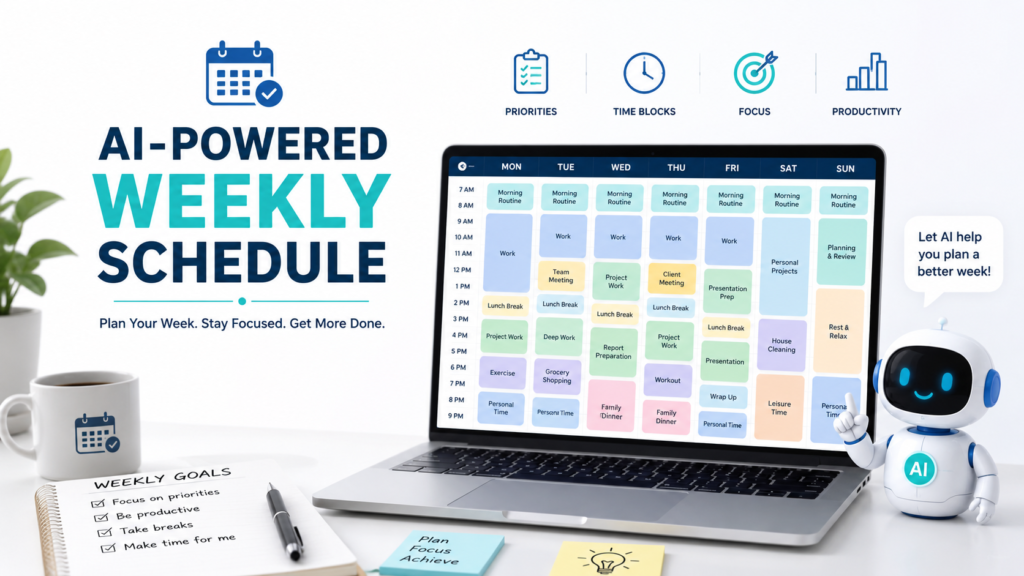
Planning an entire week can feel harder than planning a single day. You may have work deadlines, appointments, errands, household tasks, exercise, family responsibilities, and personal goals all competing for the same limited amount of time.
One practical way to organize everything is to use AI to create a weekly schedule. Instead of staring at a long list and trying to decide where everything should go, you can give an AI assistant your tasks, priorities, available hours, and fixed commitments. It can then help you turn that information into a structured starting plan.
The important word is “starting.” AI can organize information quickly, but it does not know your life as well as you do. A useful weekly schedule should always be reviewed and adjusted before you follow it.
Here is a simple step-by-step approach.
Why Use AI to Create a Weekly Schedule?
A normal to-do list tells you what needs to be done. A weekly schedule goes one step further by helping you decide when you might do it.
For example, your weekly list might include:
- Finish a work report
- Attend two meetings
- Exercise three times
- Buy groceries
- Clean the house
- Call a family member
- Pay bills
- Prepare for Friday’s presentation
- Make time for a personal project
Looking at everything at once can feel overwhelming.
AI can help organize these responsibilities across several days instead of leaving you to decide where every task belongs.
This is especially useful if you already know How to Use AI to Plan Your Day and want to expand the same basic idea from one day to an entire week.
Step 1: Start With Everything You Need to Do
Before creating a schedule, make a rough list of your responsibilities for the week.
Do not worry about organizing them perfectly yet.
For example:
This week I need to finish a project report, prepare a presentation, answer important emails, exercise three times, buy groceries, clean the house, pay bills, and call my parents.
AI now knows what needs to happen, but it still needs more information before it can build a realistic schedule.
The next step is to separate tasks that have fixed times from tasks that can move.
Step 2: Add Your Fixed Commitments
Some parts of your week cannot easily be changed.
These might include:
- Work hours
- Classes
- Meetings
- Medical appointments
- School pickup
- Regular activities
- Scheduled calls
- Events
Tell AI exactly when these commitments happen.
For example:
I work Monday through Friday from 9:00 a.m. to 5:00 p.m. I have meetings Tuesday at 10:00 a.m. and Thursday at 2:00 p.m. I also have a dentist appointment Wednesday at 4:00 p.m.
This gives AI the basic structure of your week.
Without this information, it might schedule tasks during times when you are not actually available.
Step 3: Identify Your Most Important Tasks
Next, tell AI which tasks matter most.
A weekly schedule should not treat every item as equally important.
You might say:
My project report must be finished by Wednesday afternoon. The Friday presentation is my second priority. Grocery shopping and cleaning are flexible, but they should be completed before the weekend.
Now AI knows that the report should not be pushed to Friday simply because there happens to be an empty time block.
If you are unsure how to explain your priorities clearly, How to Write AI Prompts: A Simple Beginner’s Guide can help you structure requests with better instructions and context.
Step 4: Tell AI When You Are Actually Available
Being technically free does not always mean that a time is useful.
For example, perhaps you finish work at 5:00 p.m., but you need an hour for commuting and dinner. Or maybe your mornings are busy getting children ready for school.
Give AI those details.
For example:
On weekdays, I can work on personal tasks between 7:00 and 8:00 a.m. and from 6:30 to 9:00 p.m. I want to keep Saturday afternoon free. On Sunday, I only want to spend up to two hours on planned tasks.
These boundaries can make the schedule much more realistic.
Step 5: Ask AI to Build the First Weekly Schedule
Once AI knows your tasks, fixed commitments, priorities, and available time, ask it to create the first version.
Try:
Create a realistic weekly schedule from Monday through Sunday using the information I provided. Put fixed commitments in their correct times, schedule high-priority tasks first, include breaks, and leave some unscheduled time for unexpected tasks. Do not fill every available hour.
That final instruction matters.
A schedule can look highly productive while being almost impossible to follow.
If every hour is filled, one delayed meeting or unexpected problem can disrupt the rest of your week.
Weak Prompt vs. Better Prompt
Weak Prompt
Make my weekly schedule.
This gives AI almost no information.
The result will probably be generic because AI does not know your responsibilities, deadlines, available hours, or priorities.
Better Prompt
Help me create a weekly schedule for Monday through Sunday. I work from 9:00 a.m. to 5:00 p.m. Monday through Friday. My project report is due Wednesday, and I have a presentation Friday. I want to exercise three times this week, buy groceries, clean the house, and spend two hours on a personal project. Keep Saturday afternoon free and include buffer time during the week. Do not schedule every available hour.
This version provides a much clearer assignment.
OpenAI’s prompting guidance recommends providing clear instructions and relevant context so the model has enough information to understand what you want.
Step 6: Ask AI to Spread Tasks Across the Week
One mistake people make is putting too much work into one or two days.
AI can help distribute flexible tasks.
For example:
Review this schedule and make sure Monday and Tuesday are not overloaded. Move flexible tasks to other days if necessary.
Or:
Spread household tasks throughout the week instead of putting all of them on Saturday.
This can make your schedule easier to follow.
A balanced schedule usually works better than a theoretically efficient schedule that leaves you exhausted halfway through the week.
Step 7: Match Important Tasks to Your Energy
Time is not your only limited resource. Energy matters too.
If you concentrate best in the morning, tell AI to place difficult tasks there when possible.
For example:
I usually have the most energy in the morning. Schedule tasks that require concentration earlier in the day and place routine tasks later whenever possible.
If evenings are difficult for you, say so:
After 8:00 p.m., I only want easy tasks that require little concentration.
These details help turn a generic calendar into something closer to a schedule you might actually use.
Step 8: Include Breaks and Buffer Time
Do not ask AI to optimize every minute.
A realistic weekly plan needs room for things that take longer than expected.
You can ask:
Add short breaks after long work periods and leave at least three flexible blocks during the week for unexpected tasks.
Buffer time can be used when:
- A meeting runs late
- A task takes longer than expected
- Something urgent appears
- You need additional rest
- You simply fall behind
If nothing unexpected happens, that time becomes available for another task or for yourself.
Step 9: Ask AI What Should Move If the Week Is Too Full
Sometimes the real problem is not organization.
There may simply be too much to do.
If AI creates a crowded schedule, ask:
This schedule feels too busy. Identify the lowest-priority tasks that could be postponed until next week.
You can also ask:
Which tasks could be shortened, combined, delegated, or moved without affecting my highest priorities?
AI can suggest possibilities, but you should decide what can actually be delayed.
It may not know that a seemingly minor task is connected to an important deadline or commitment.
Step 10: Turn Large Projects Into Smaller Weekly Tasks
A task such as “prepare presentation” may be too broad to schedule effectively.
Instead, ask AI to divide it into smaller steps.
For example:
Break my Friday presentation into smaller tasks that I can complete between Monday and Thursday.
The result might look something like:
Monday: Gather information
Tuesday: Create an outline
Wednesday: Draft slides
Thursday: Review and practice
Friday: Final check and presentation
This approach helps prevent large projects from becoming last-minute emergencies.
Step 11: Review the Schedule Before Using It
Never assume the first AI-generated schedule is automatically practical.
Read through it and ask yourself:
- Are the fixed appointments correct?
- Are deadlines respected?
- Is travel time included?
- Are meals and breaks realistic?
- Are difficult days overloaded?
- Is there enough flexibility?
- Did AI misunderstand any priority?
- Does the schedule fit my actual energy and responsibilities?
If something looks wrong, change it.
You do not need to start over.
This is where How to Ask AI Better Questions: 10 Simple Tips for Better Answers becomes useful. Follow-up instructions can help you refine the original schedule instead of generating a completely new one.
Step 12: Update Your Schedule When Plans Change
A weekly schedule will rarely survive seven days without changes.
Imagine that it is Wednesday afternoon and an urgent work task appears.
Instead of rebuilding the rest of the week manually, tell AI:
It is Wednesday afternoon. A new work task requiring three hours must be completed by Thursday evening. Keep my Friday presentation preparation as a high priority. Reorganize the rest of my week and move lower-priority tasks if necessary.
AI can help create a revised version using the new information.
You remain responsible for checking whether the updated plan makes sense.
A Reusable Weekly Planning Prompt
Here is a template you can adapt each week:
Help me create a realistic weekly schedule.
Week: [dates]
Fixed commitments:
[List work hours, meetings, appointments, classes, and other fixed events]Tasks:
[List everything you want to accomplish]Deadlines:
[List tasks with deadlines]Highest priorities:
[List your most important tasks]Flexible tasks:
[List tasks that can move]Available personal time:
[List the times you are actually available]Energy preferences:
[Example: I concentrate best in the morning]Personal boundaries:
[Example: Keep Saturday afternoon free]Create a Monday-through-Sunday schedule. Schedule high-priority and deadline-based tasks first. Include breaks and buffer time, and do not fill every available hour. If everything cannot realistically fit, tell me which lower-priority tasks should be postponed.
The template may look long, but you do not have to fill in every section.
Use only the information that matters for your week.
Practical Example: Planning a Busy Week
Suppose you have:
- A report due Wednesday
- A presentation Friday
- Two meetings
- Three exercise sessions
- Grocery shopping
- Laundry
- One family dinner
- Two hours for a personal project
Instead of asking AI to “organize my week,” provide the details:
Create a weekly schedule for me. I work Monday through Friday from 9:00 a.m. to 5:00 p.m. My report is due Wednesday at 3:00 p.m., and my presentation is Friday morning. I have meetings Tuesday at 11:00 a.m. and Thursday at 3:00 p.m. I want three 45-minute exercise sessions, grocery shopping, laundry, a family dinner Thursday evening, and two hours for my personal project. I prefer demanding work in the morning. Keep Saturday afternoon open and leave buffer time during the week.
After receiving the schedule, continue refining it.
For example:
Tuesday looks too busy. Move anything flexible to Wednesday evening or the weekend.
Then:
Give me a short list of my three most important tasks for each day.
This conversational approach is usually more useful than expecting one prompt to produce a perfect week.
Common Mistakes When Using AI for Weekly Planning
Giving AI Only a Task List
A list tells AI what needs to happen but not when it can happen.
Include your available time, fixed commitments, and deadlines.
Scheduling Every Hour
A completely full calendar leaves no room for delays or unexpected events.
Build in buffer time.
Ignoring Your Energy
Three free hours do not necessarily equal three productive hours.
Tell AI when you usually have the most concentration.
Treating Every Task as Equally Important
Your schedule should reflect deadlines and priorities.
Explain what matters most.
Accepting the First Schedule Without Reviewing It
AI can misunderstand your instructions or produce a plan that looks reasonable but does not work in real life.
Review important details before relying on the schedule.
If you are uncertain about something an AI response tells you, How to Check If an AI Answer Is Accurate explains a useful process for reviewing AI-generated information rather than automatically accepting it.
Be Careful With Personal and Sensitive Information
Weekly schedules can reveal a surprising amount about your life.
They may contain information about where you work, when you are away from home, medical appointments, family routines, financial responsibilities, or confidential business activities.
You usually do not need to provide all of those details to get planning help.
Instead of entering:
Appointment with Dr. [Name] about [private medical condition]
you can simply write:
Medical appointment, Wednesday 4:00–5:00 p.m.
Instead of entering confidential client information, you can write:
Client meeting, Thursday 2:00–3:00 p.m.
Give AI enough information to organize the schedule without sharing unnecessary sensitive details.
Use AI as an Organizer, Not Your Boss
The purpose of AI weekly planning is not to let software decide how you should live your week.
AI is useful because it can quickly organize many pieces of information and propose a structure.
You still decide:
- What matters most
- What can wait
- How much rest you need
- Which commitments cannot move
- Whether the schedule feels realistic
- When plans should change
Think of the AI-generated schedule as a draft.
You are the editor.
Final Takeaway
Learning how to use AI to create a weekly schedule can make planning feel less overwhelming, especially when you have many responsibilities competing for your time.
Start by giving AI your tasks, fixed commitments, deadlines, priorities, available hours, and important personal boundaries. Ask it to create a realistic schedule with breaks and buffer time rather than filling every hour.
Then review the result and make corrections.
As your week changes, use follow-up prompts to reorganize what remains instead of abandoning the entire plan. Used this way, AI can become a practical planning assistant that helps you spend less time organizing your week and more time focusing on what actually matters.